Selling
Before you transfer
SatsBid supports two registrars, Dynadot and Spaceship. How to move a domain from another registrar to one of them, step by step with pictures, before you add it on SatsBid.
On this page
Supported registrars#
Supported registrars: Dynadot and Spaceship. To list a domain in SatsBid auctions, it must first be registered at one of them. If it's elsewhere, transfer it to Dynadot or Spaceship first.
SatsBid holds its custody accounts at Dynadot and Spaceship, so a domain can be taken into custody, auctioned and delivered only there. If your domain is already at one of them, skip this page and add it on SatsBid. If it is at any other registrar, move it first with the steps below. The steps are illustrated; your registrar's screens may look slightly different.
Check first#
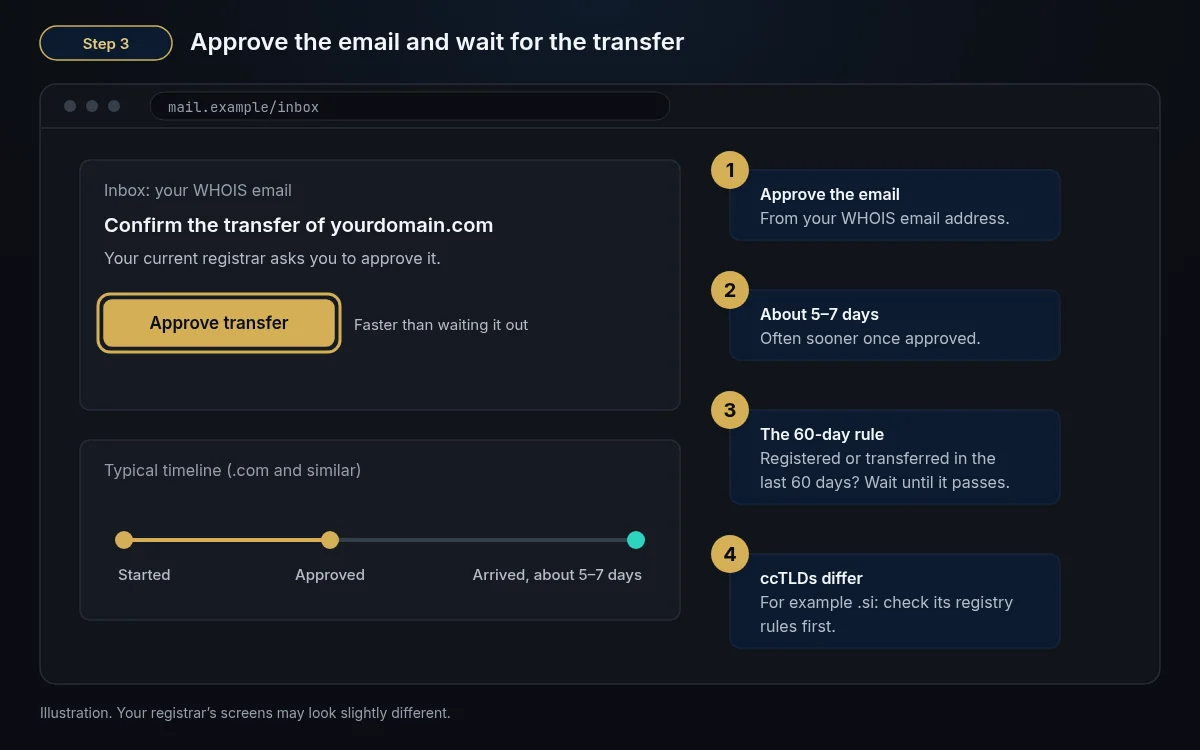
- The 60-day rule. A domain registered, or transferred to a new registrar, in the last 60 days cannot be transferred yet. Wait until that period has passed.
- Country-code extensions (ccTLDs) have their own rules. For example .si, .de or .uk may use a different procedure, a registry-issued code or no transfer lock at all. Check the rules for your extension at your registrar or the registry before you start.
- You need access to the WHOIS email. The email address on the domain's contact record may get a message to approve the transfer. Make sure you can read it.
- Not expiring soon. A domain that is close to expiry or in its grace period may not transfer. Renew it first if needed.
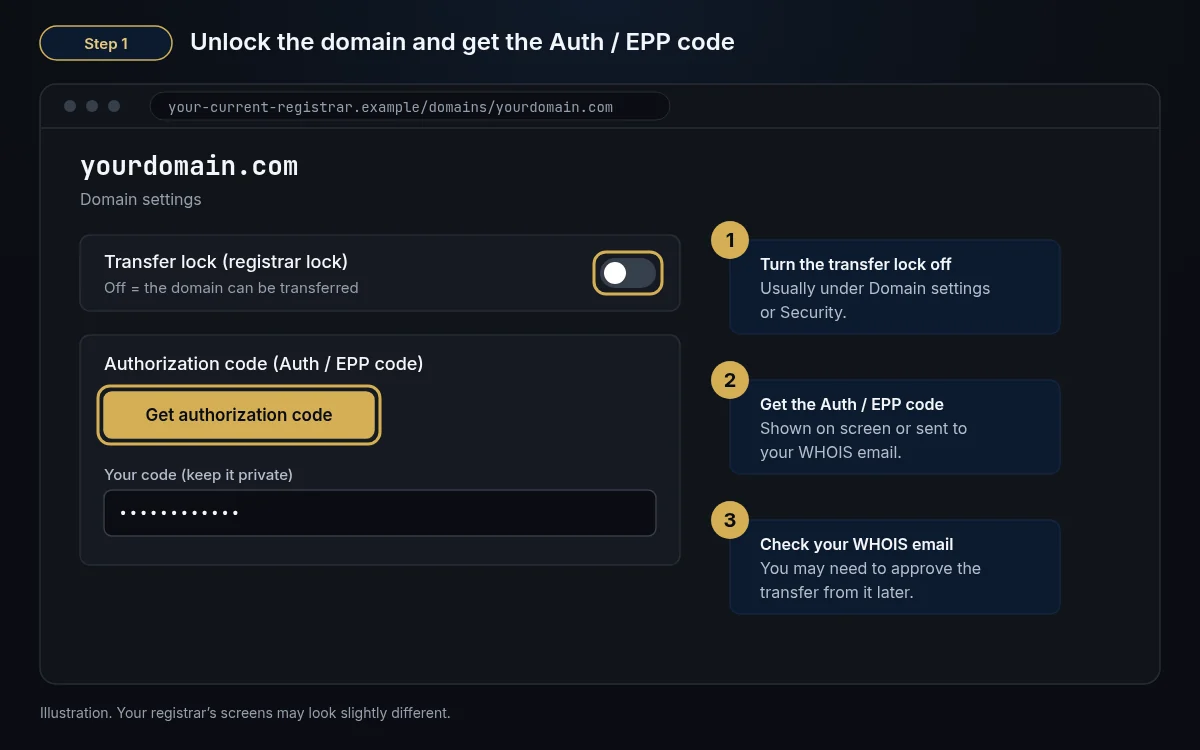
Step 1: unlock and get the Auth/EPP code#
At your current registrar, open the domain's settings:
- Turn the transfer lock (registrar lock) off.
- Get the authorization code (also called Auth code, EPP code or transfer key). It is shown on screen or sent to the WHOIS email.
- Keep the code private: anyone with it can request the transfer.
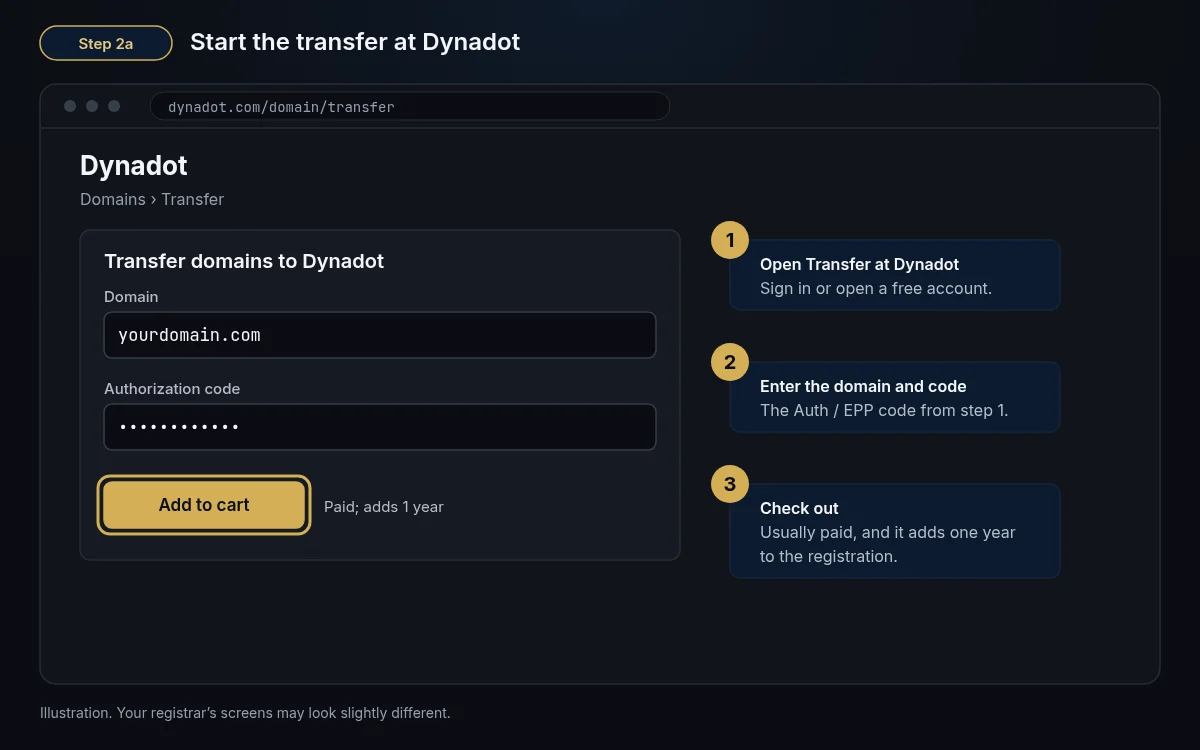
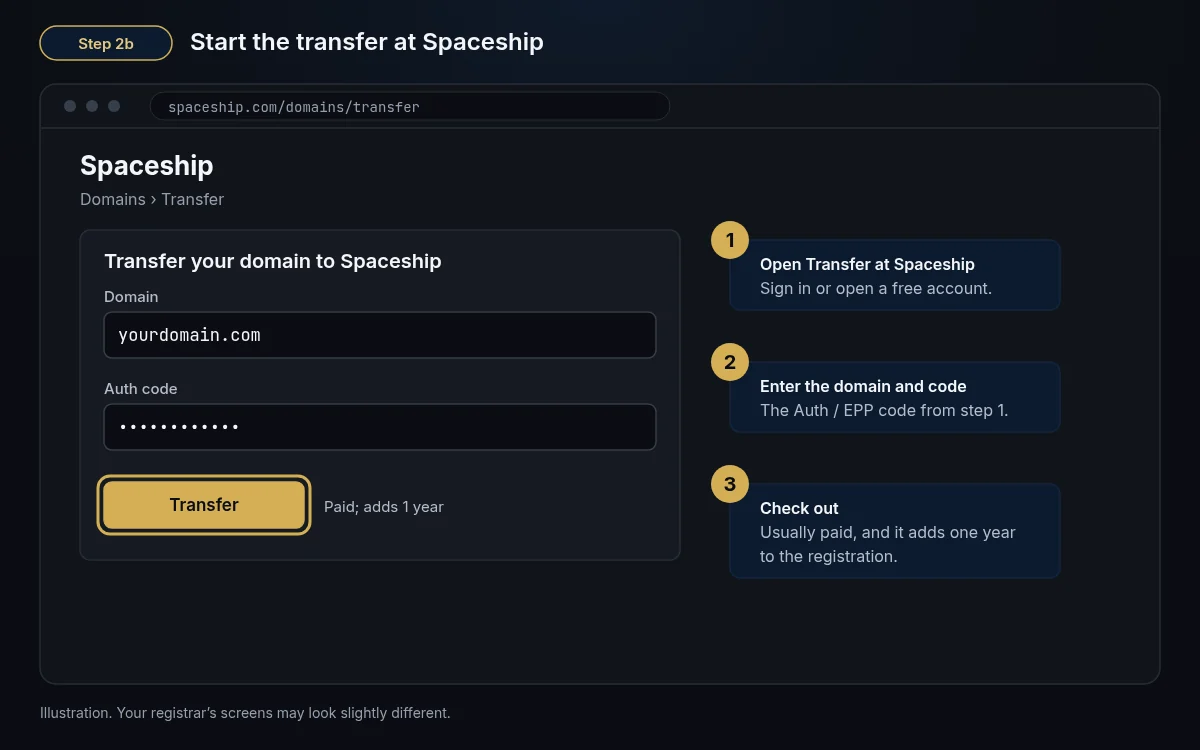
Step 2: start the transfer at Dynadot or Spaceship#
Sign in to (or open a free account at) Dynadot or Spaceship, open their domain Transfer page, enter the domain and the code, and check out.
- A transfer is usually paid, but it adds one year to the registration, so you lose nothing: the new expiry date is one year later than the old one.
- Pick the registrar you want to keep the domain at. SatsBid works the same with both.
Step 3: approve and wait#
- For .com and similar extensions a transfer usually takes about 5–7 days.
- It is often faster if you approve the confirmation email that your current registrar sends to the WHOIS email.
- Keep the nameservers and DNS as they are while the transfer is pending.
Step 4: add the domain on SatsBid#
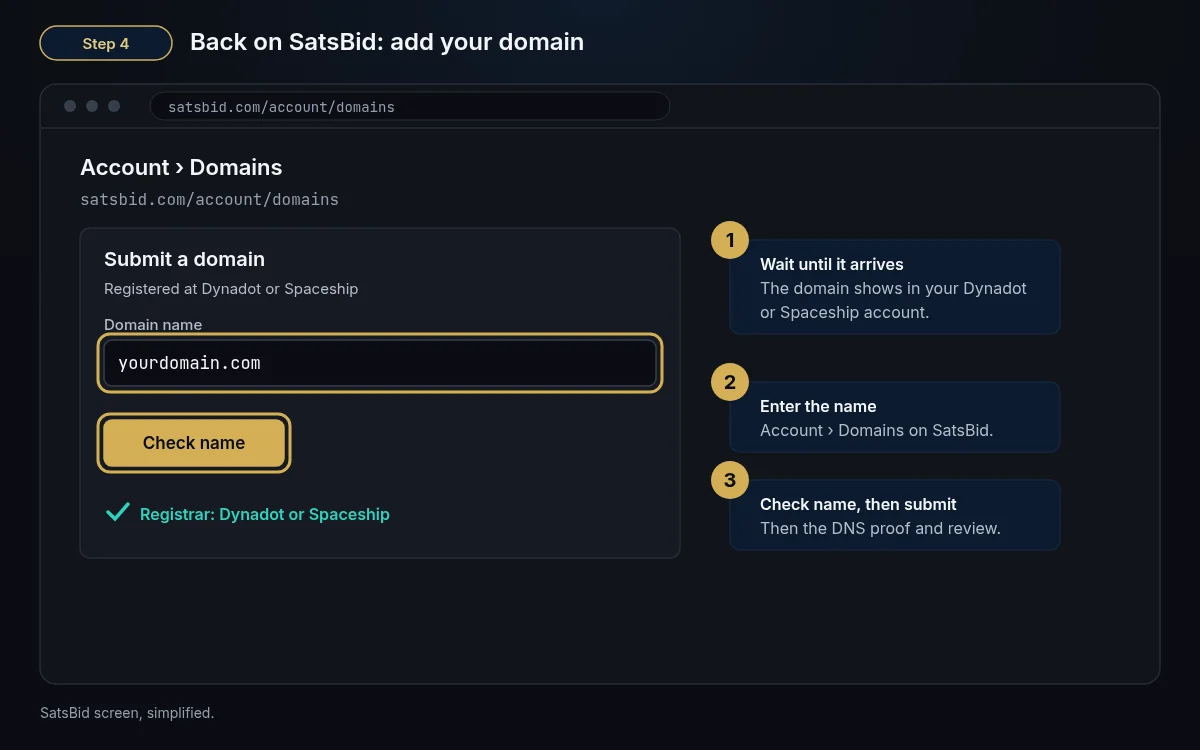
Once the domain shows in your Dynadot or Spaceship account, come back and open Account → Domains. Enter the name, choose Check name and submit it. Then prove control with a DNS record and pass the review.
The DNS record: enter only the host#
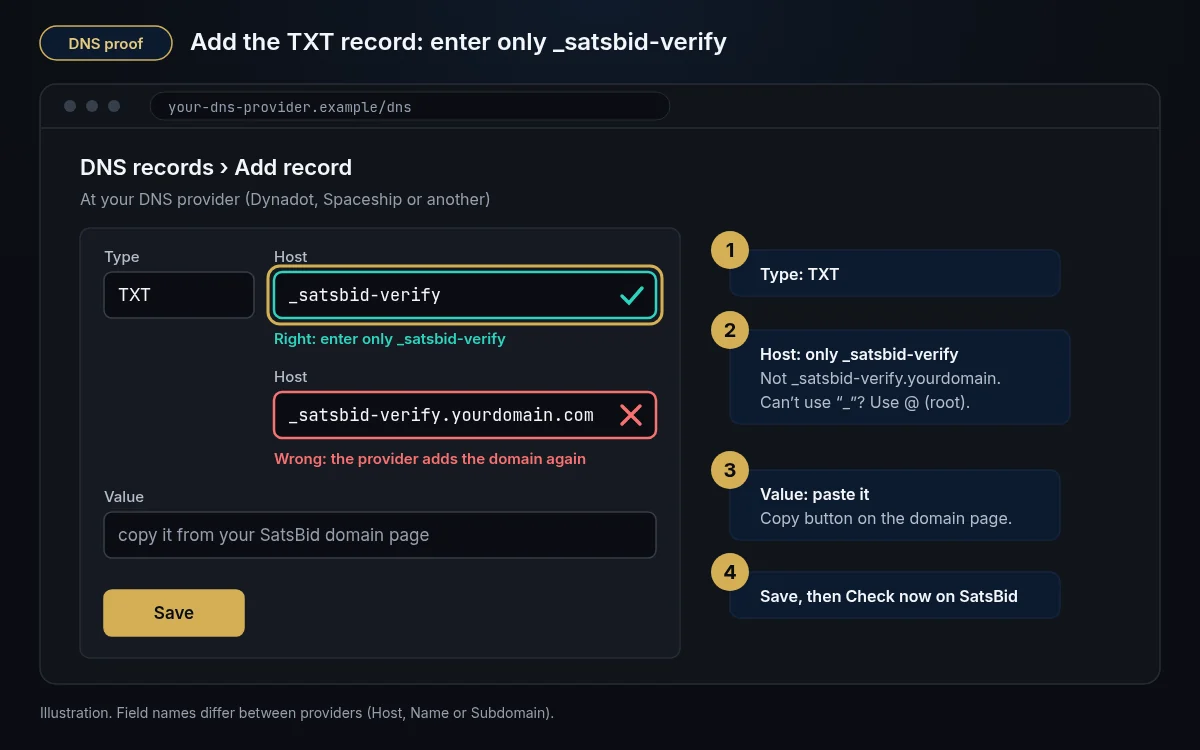
In the TXT record's host (or name, or subdomain) field enter only _satsbid-verify. Most providers add your domain by themselves, so _satsbid-verify.yourdomain would end up at a doubled name. See Enter only the host.
After verification: into custody#
After approval you move the domain into SatsBid's account at the same registrar (a free account move, not another transfer). See Custody and transfers for the Dynadot push and the Spaceship Transfer ownership steps.
Last updated: November 26, 2026